


Emojis have become an integral part of online conversations. They help us express ourselves and help others better understand our feelings and the tone of our messages. That’s why keyboard apps like Gboard offer so many emojis but despite all the options, you may still miss the emoji relevant to a particular moment.
Google understood the problem and introduced Emoji Kitchen in 2020. This is a feature that lets you mash two different emojis to create a custom emoji sticker. Its purpose is to give users a chance to express themselves more uniquely instead of limiting themselves to the same generic emoji all the time.
We’ll show you how to use Gboard’s Emoji Kitchen to create custom emoji stickers. But before we start, make sure you have Gboard installed on your Android device, and it’s the default keyboard app. It comes pre-installed on all Pixel smartphones. Other device users can download it for free from Google Play Store.
Read also:How to create custom stickers on Gboard
How to Use Gboard Emoji Kitchen
- Launch a messaging app and tap the text field to bring up Gboard.
- To get emoji, tap the emoji icon on the left side of the space bar.
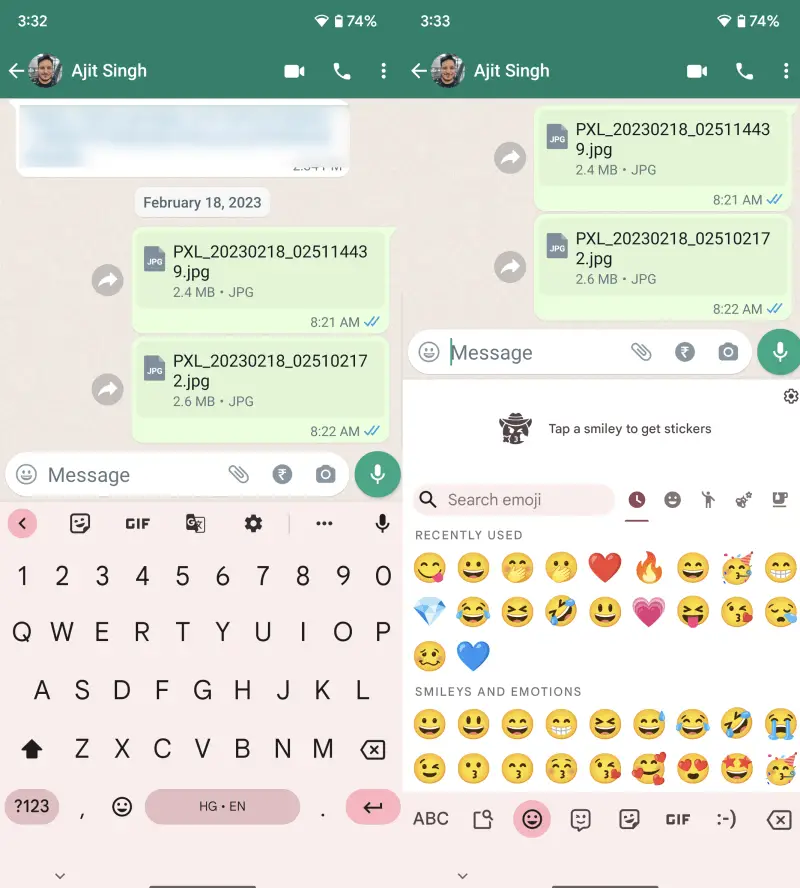
- Select the first emoji that will serve as the base emoji for the combo.
- Select another emoji that will combine with the original emoji.
- This will show you a preview of the custom emoji sticker. Tap on it to send it to the recipient.
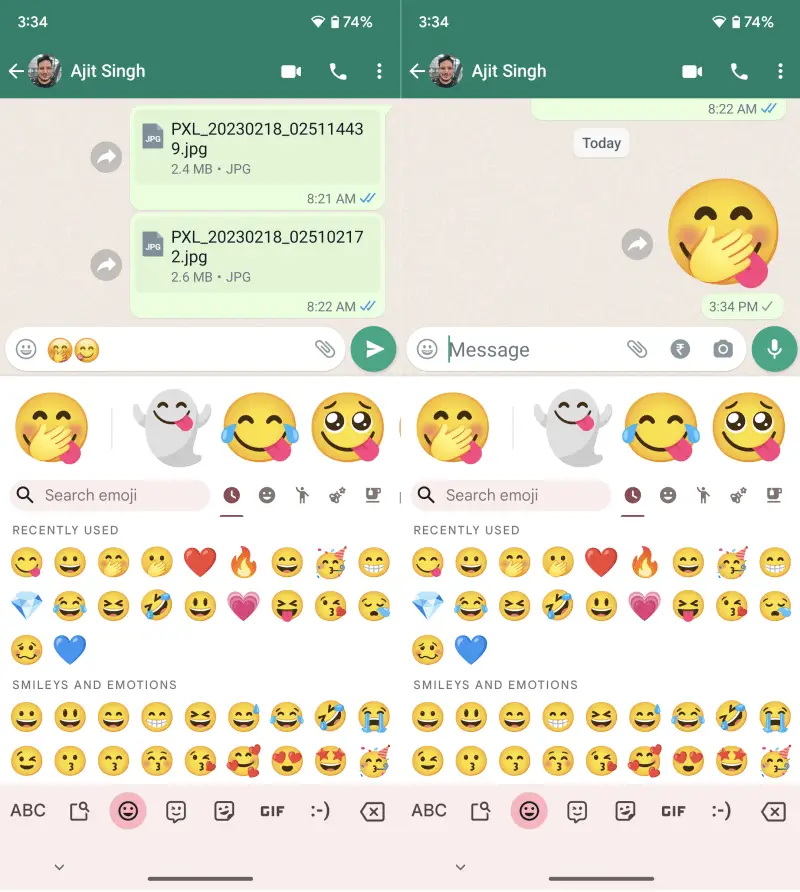
This is how you can create custom emoji stickers using Emoji Kitchen on Gboard. This feature is only for Android users and will not work on Gboard for iOS. If this doesn’t work for you on Android, make sure Gboard Settings > Emoji, stickers & GIFs > Emoji stickers Toggle is on. If the toggle is on and the issue still persists, chances are the messaging app you are using does not support the feature.
